 amadeus DMXGet Amadeus ↓
From installation
to your final track.
Install the apps, configure your equipment and run the show on Mac or Windows. Choose a topic or search for a feature. Screenshots show the Mac app; Windows-specific steps are labelled.
Updated 19 October 2026 · Amadeus DMX & Amadeus Link for Mac and Windows
Choose a computer for your rig
| Requirement | Mac | Windows |
|---|---|---|
| System | Apple Silicon M1 or newer; macOS 26+ | x64, 4 cores; Windows 10 22H2 or Windows 11 |
| Memory | 8 GB minimum; 16 GB or more recommended with instrument analysis | |
| Graphics | A Pro or Max chip is recommended for large 3D rigs | DirectX feature level 10.0 minimum; DirectX 11 recommended |
| Free storage | 1 GB minimum; 5 GB recommended, plus track cache | 1 GB minimum; 10 GB recommended with the NVIDIA instrument pack, plus track cache |
| Connection | Wired Ethernet recommended for network DMX and a separate DJ laptop | |
Allow about 50 MB per prepared track when using instrument analysis. Keep internet access available for downloads, updates, cloud AI and new streamed recordings. Rules and prepared local tracks can run offline.
Intel Macs are not supported. Windows on ARM runs the x64 app through emulation and has only been tried in a virtual machine. The Windows DJ integrations are built but not yet verified on Windows hardware; test your exact setup before relying on it at a gig.
Amadeus Link is lightweight: install it on the computer already running your DJ software. It does not need to render the lighting stage.
Install on Mac or Windows
Download the installer for your computer from the release page. Install Amadeus DMX on the lighting computer and Amadeus Link on a separate DJ laptop, if you use one. The installers include the complete core app.
Mac — DMG installation
- Choose AmadeusDMX.dmg, or AmadeusLink.dmg for the DJ laptop.
- Open the disk image, drag the app to Applications, then eject the disk image.
- Open the app from Applications. Current releases use Apple Developer ID signing and Apple notarisation.
- Allow local-network access when asked. Follow the setup assistant, or use the supplied club and concert rigs for a preview.
Notarisation can still be pending for a newly published release. If macOS blocks a new download, keep the Mac online and check again after notarisation completes. Older builds may request a one-time approval in Privacy & Security. The switch from an older signing identity can also require granting Accessibility or network permission again.
Windows — setup installer
- Choose AmadeusDMX-Setup-<version>.exe, or AmadeusLink-Setup-<version>.exe for the DJ laptop.
- Run the installer. Choose installation for everyone (administrator approval required), or for your own account.
- Finish the setup wizard and open the app from the Start menu.
- Allow the app’s network access on the network you use for lighting. See Windows connection help if pairing or discovery is blocked.
Windows installers are currently unsigned. SmartScreen may offer More info → Run anyway; proceed only for an installer you trust from the release page. Smart App Control or an organisation’s policy may block unsigned apps entirely.
Optional packs are installed later from Settings. A download page that shows 404 may require repository access; the release page must be public for downloads without signing in.
Your first show
 ↗ Enlarge screenshot
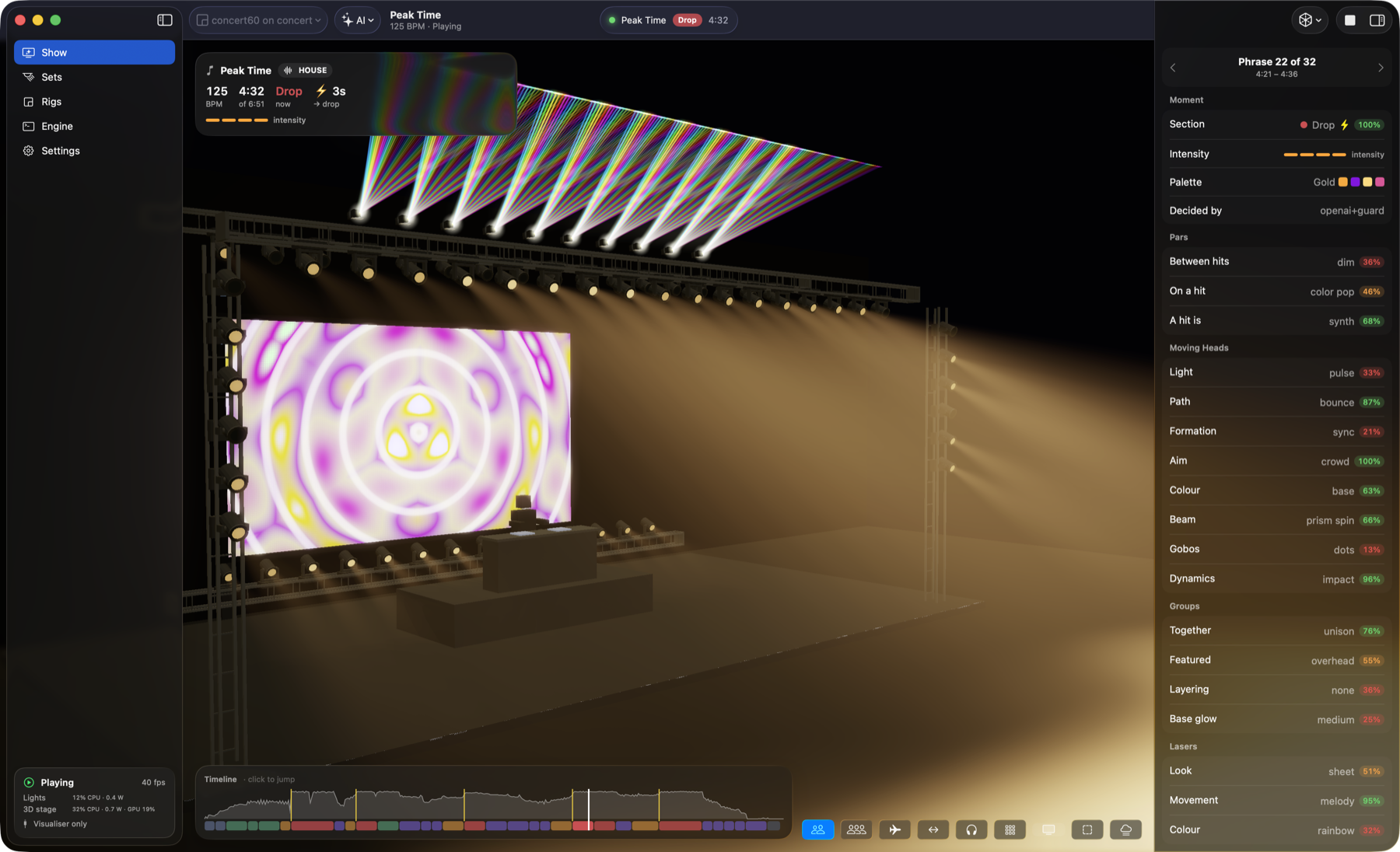
Start with a preview before sending output to real fixtures.
- Use the setup assistant to create a set, choose a venue template and mount the set on the rig. An example rig is useful when you do not have lights connected.
- Select the set-and-rig combination in the toolbar.
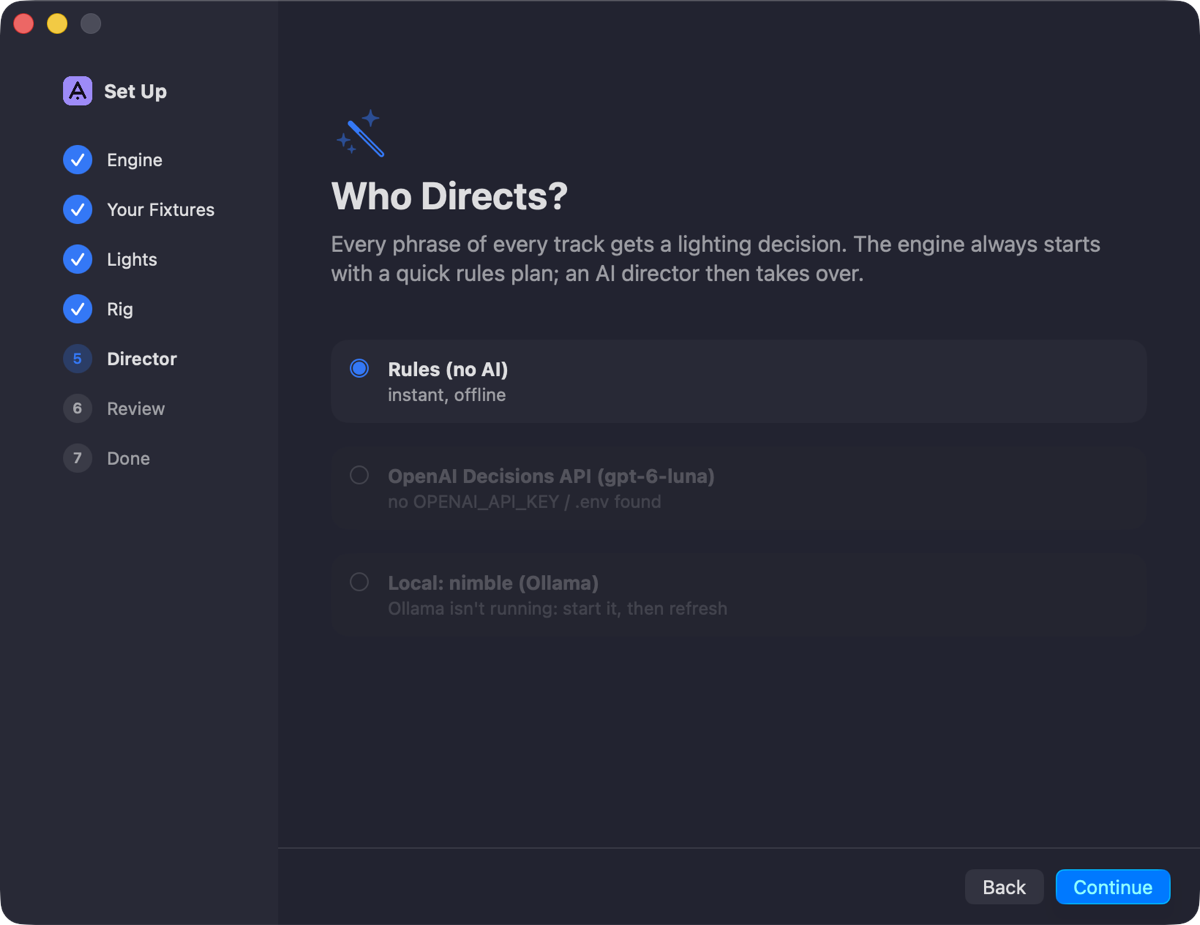
- Choose Rules as the director for an immediate first preview, without configuring AI.
- In the Show menu, choose Visualise Only.
- Choose Show → Play a Track… and select a local audio file. Allow the track to be analysed, then watch its show in 3D.
- When your fixture patch and output routing are ready, use Perform + Visualise or Perform Only to control the real lights.
Use Show → Stop Show to stop playback and lighting. Stop the show before selecting another set-and-rig combination.
Walk through the setup assistant
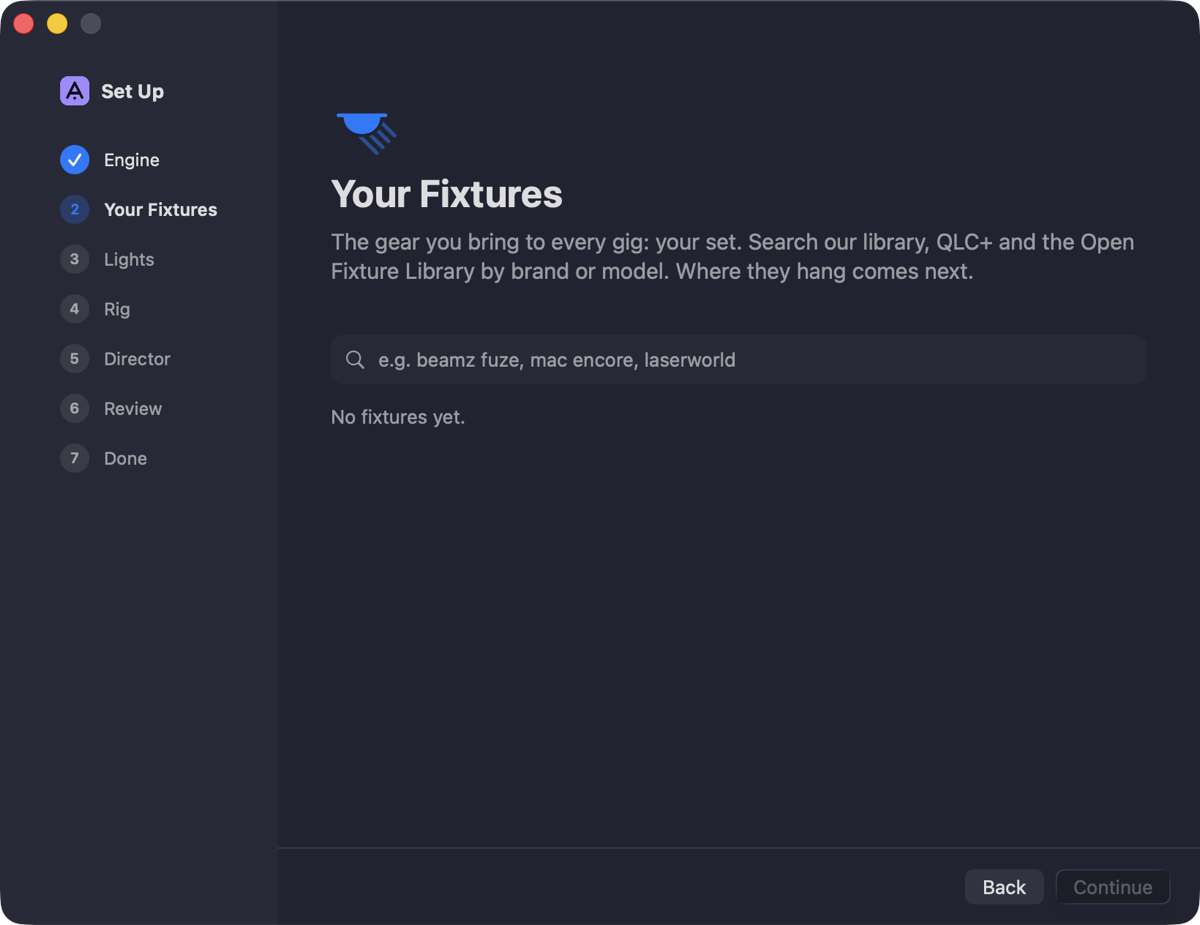
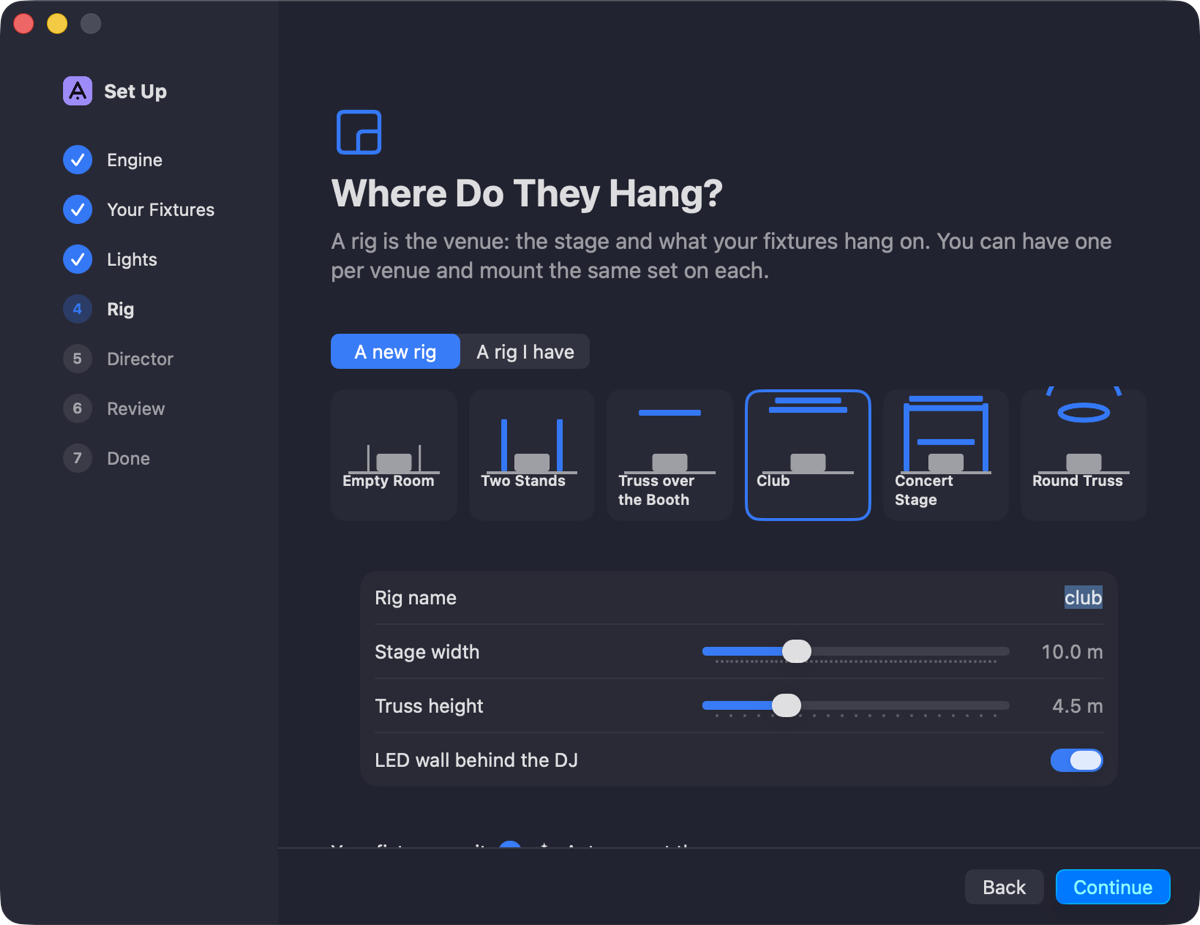
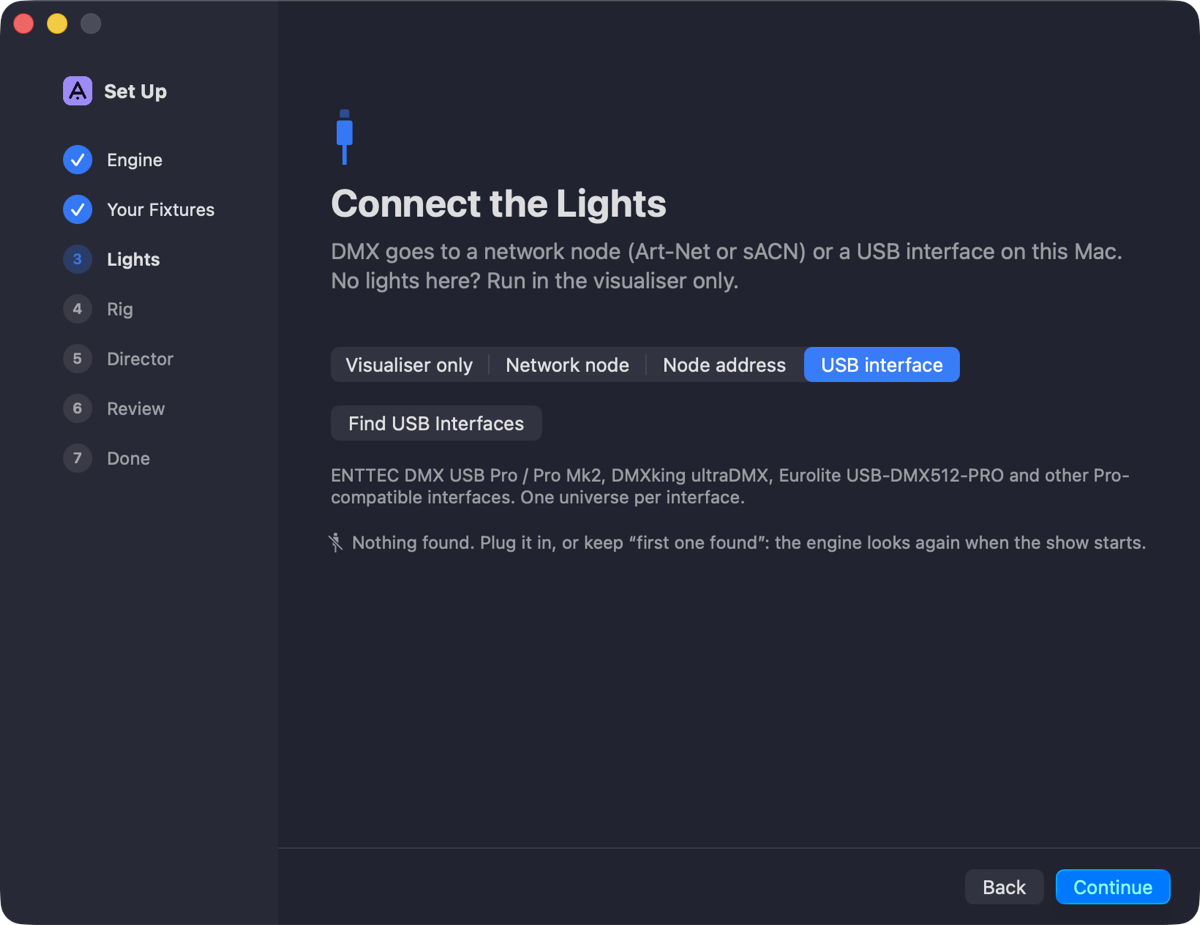
On Mac, choose File → New Set…. The assistant takes you through your equipment, venue, output and director before creating the show.
 ↗ Enlarge screenshot
 ↗ Enlarge screenshot
 ↗ Enlarge screenshot
 ↗ Enlarge screenshot
Use Create and Mount to create the set and venue and place the fixtures automatically. Fine-tune the result on the Rigs page. OpenAI is available after you have saved a key in Director settings.
Add and patch your fixtures
 ↗ Enlarge screenshot
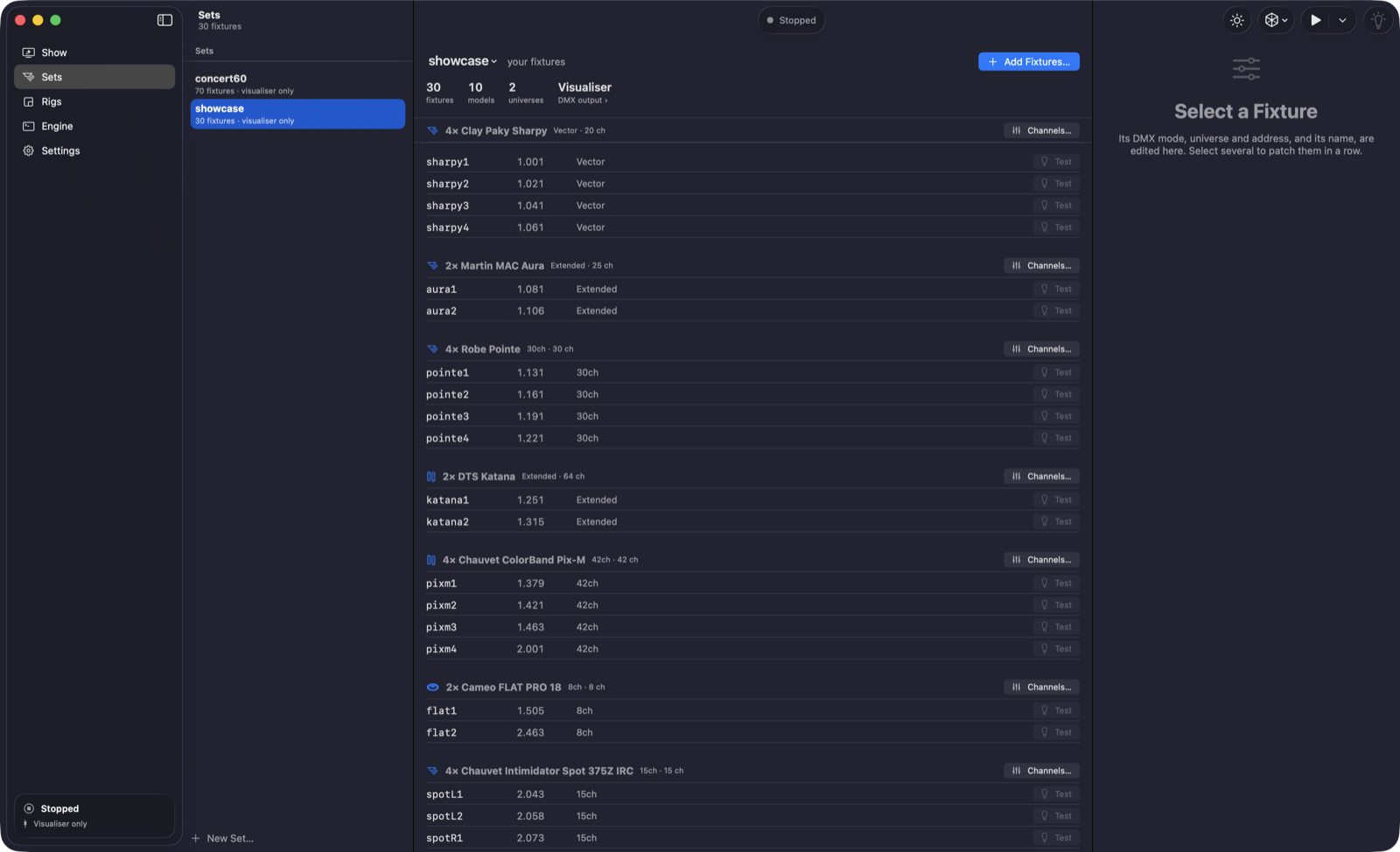
A set is the equipment you own and its DMX patch. A rig is the venue where you place it. Keep one set and reuse it at different venues.
- Choose New Set…, or open Sets and select an existing set.
- Use Add Fixtures… to search by manufacturer or model. Around 2,400 fixture definitions from over 200 brands are included for offline searching.
- Select the correct fixture mode. It must match the mode selected on the physical fixture.
- Select a fixture to edit its name, mode, universe and starting address. Next Free finds an available address; Patch in a Row assigns consecutive addresses to a selection.
- Set the same address and mode on each physical fixture. Use pan/tilt inversion when a moving head’s direction needs correcting.
Set changes save automatically. The set-name menu lets you duplicate, rename or delete a set. Renaming a fixture preserves its position on your rigs.
Use a fixture’s Test control to identify it: the selected fixture stays lit while the others are dark and a running show is paused. Switch the test off when finished; it times out after one minute. The test also shows the universe, channels and output being used.
Build and arrange your venue
 ↗ Enlarge screenshot
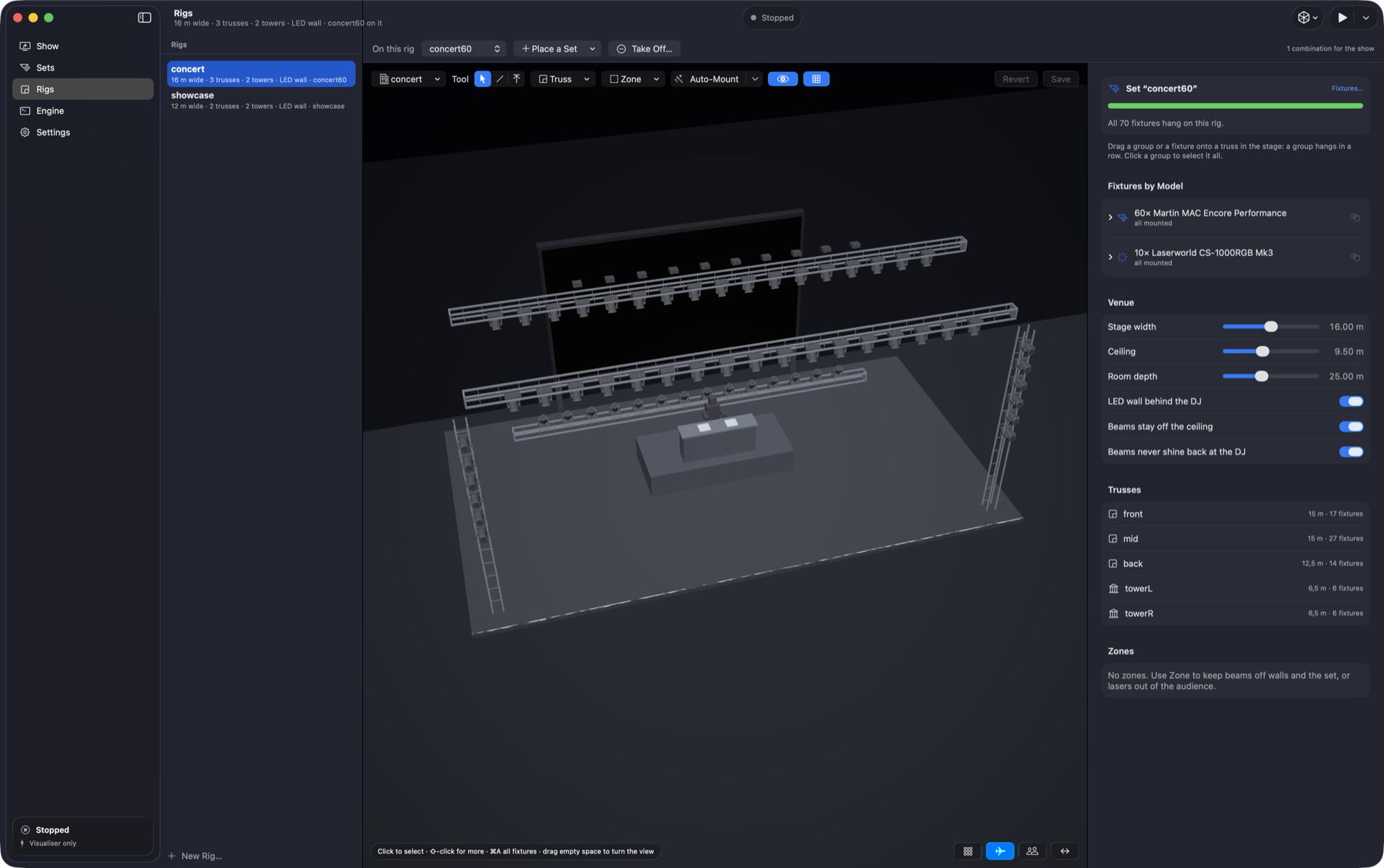
- Open Rigs → New Rig…. Choose a room, stands, booth, club or stage template and adjust its dimensions.
- Use Place a Set to add your fixture set to the venue.
- Use Auto-Mount, or drag a fixture or fixture group onto a truss. Unplaced fixtures wait on the floor in front of the stage.
- Use Draw Truss and Place Tower to build the layout. Drag the handles on selected trusses to change their length and direction.
- Use the inspector to refine position, mounting side, rotation and aim. Configure the venue dimensions and LED wall there too.
- Save with ⌘S. The combination then appears in the Show toolbar.
Shift-click adds fixtures to a selection; ⌘A selects all fixtures. Dragging a selected group moves it together. Hold Option for free placement. Delete unmounts a fixture without removing it from the set; ⌘Z undoes a change. Take Off… removes a set from that venue.
Round trusses and outdoor venues
Choose a round-truss template, or add a circle or half-circle from the rig editor’s Truss menu. Adjust its diameter and arc in the inspector. Fixtures mounted on it follow the arc; mounting sides are labelled Under, Outside, Top and Inside.
For an open-air stage, enable Outdoor in the Venue inspector. The stage has no ceiling and the director can use more upward beams. Indoors, set the ceiling height and use the ceiling and DJ-facing beam guards as needed.
Print and check the rig
On Mac, the rig editor helps you turn the planned venue into a real setup.
- Choose the Hang Sheet printer button. The current layout opens in your browser, ready to print or save as PDF.
- Use the plan, per-truss drawings, fixture positions, DMX patch and labels to hang the rig. Stage left means the performer’s left; the sheet counts places from that end.
- After hanging, select Check the Hang with the checklist button. It selects and lights fixtures one at a time in the sheet’s order.
- Choose Right, Next when a fixture matches. Use Lit Somewhere Else to correct swapped placements, or Beam Goes Elsewhere to correct a head that is turned or mirrored.
- Choose Done, then Save to keep corrections.
The sheet prints the current editor layout, including unsaved edits. A fixture that is excluded from the light test is marked for visual checking instead. Keep the brightness limiter low while checking the physical rig.
Connect your DMX hardware
Amadeus supports Art-Net, sACN and supported USB DMX interfaces. Configure the controller once, then map each set’s universes to its outputs.
- Connect your lighting controller and Mac to the same network, or connect the USB interface.
- Open Show → DMX Devices & Output… (⇧⌘D on Mac, Ctrl+Shift+D on Windows).
- Choose Search to discover network nodes and supported USB interfaces. Add a controller manually if discovery does not find it.
- Set the address, output count and whether the device numbers its first universe as 0 or 1.
- Map every used universe in your selected set to a device and output. Check the wire-universe number shown.
- Save, then restart the show to apply the routing.
Check the fixture mode and starting address if a light responds incorrectly. For a preview without physical output, choose Visualise Only.
Supported USB options include ENTTEC DMX USB Pro / Pro Mk2, DMXking ultraDMX and Eurolite USB-DMX512-PRO or other Pro-compatible interfaces. Check that your device and fixture modes match your patch.
Choose your lighting director
 ↗ Enlarge screenshot
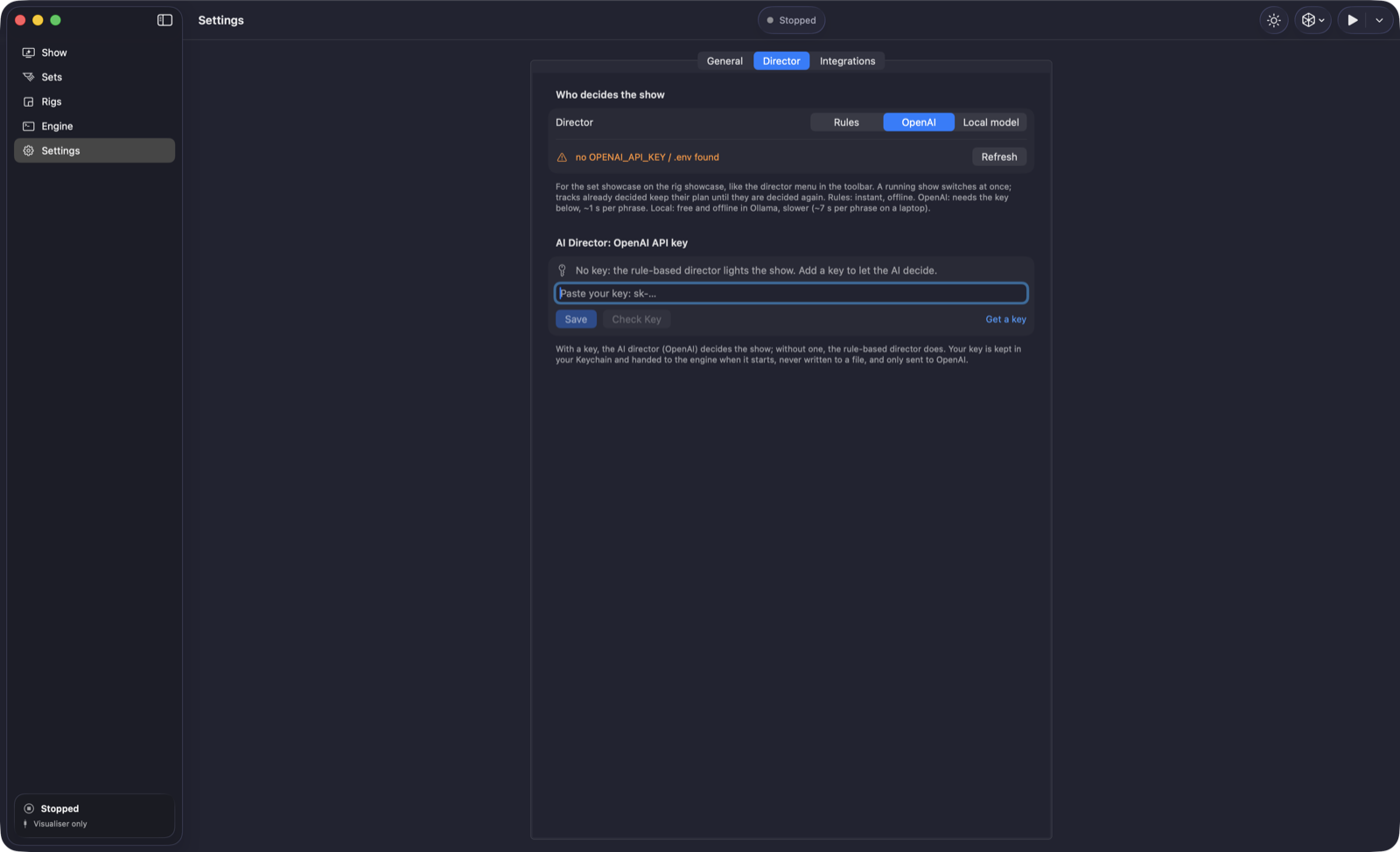
Open Settings → Director, or use the toolbar selector. The director choice belongs to the selected set on its rig.
OpenAI — your AI director
- Use Get a key in the app to obtain your own OpenAI API key.
- Paste it under AI Director: OpenAI API key, choose Save, then Check Key.
- Select OpenAI under Who decides the show. The Show toolbar displays AI.
On Mac the key is stored in Keychain. Cloud AI needs an internet connection and a working API account. Each phrase’s lighting look is planned ahead of playback; the show engine handles beat timing.
Rules — instant and offline
Select Rules to run without an AI account. It responds to the analysed musical structure and genre and is useful for your first preview or an offline show.
Local model
If you have Ollama and a decision-capable model installed, select Local model, enter the Ollama address, choose Refresh and select an available model. Models without decision support cannot be selected. Local planning uses extra memory and takes longer; a rule-based plan can play while the AI plan is being prepared.
Play tracks and follow the music
For a local track, use Show → Play a Track… (⌘O). For a DJ mix, use the Start menu to choose your DJ software, then start the live show. The Start button and ⌘R reuse the last selected live source.
Amadeus analyses musical structure, beats, drum fills and melodic accents. Songs can use verses and choruses, while dance tracks use build-ups and drops. Cinematic music can be lit by individual musical impacts rather than relying on a dance beat grid.
Genre-aware styles guide the colours and movement. During a mix, lighting blends with deck volume, while moving heads follow the dominant deck. Seeks, loops and tempo changes follow the supported DJ source.
The Show page displays track progress, current and next musical sections, deck preparation status and a timeline. Open the Director inspector to see the selected palette, intensity and look for a phrase.
Shape the whole night with Show Arc
 ↗ Enlarge screenshot
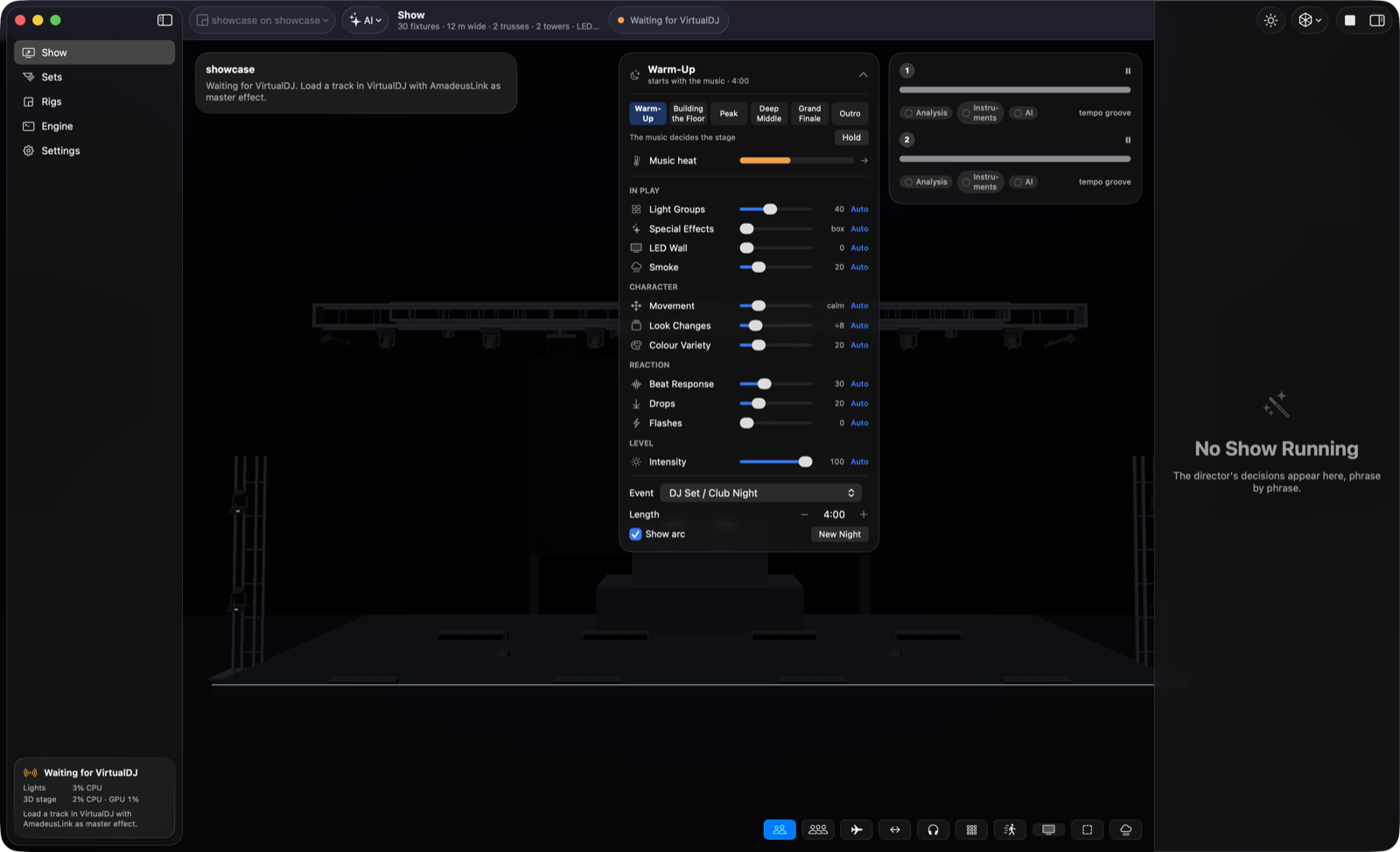
While a live show runs, expand the night card on the Show page. Show Arc shapes the lighting across an entire event, following the energy of the music as well as the evening’s progress.
- Choose the Event type, such as a club night, wedding or party.
- Set the planned Length with the plus and minus controls, in 15-minute steps.
- Turn on Show arc. Use New Night to reset it; the clock begins with the music.
- Watch the stage strip, music heat and countdown. Select a stage to move there immediately; enable Hold to stay there.
Take control when you need to
Adjust Light Groups, Special Effects, LED Wall, Smoke, Movement, Look Changes, Colour Variety, Beat Response, Drops, Flashes and Intensity. Moving a control takes it out of automatic control. Select its Auto button to hand it back, or All Auto to return everything.
Light Groups controls how much of the rig joins in. Special Effects ranges from off, through big moments only, to the director’s full plan. Movement changes how active the heads are. Intensity controls the whole rig’s brightness. Some changes need a few seconds to re-plan the music.
Turning Show Arc off lets each track play with the director’s full plan. Reset with New Night when starting a new event.
Special moments on the LED wall
The automatic LED wall can count into a major drop. Countdowns are deliberately rare—once or twice in a night—so they remain a special moment rather than appearing at every drop. Leave the wall on Auto to follow the director.
Connect VirtualDJ
 ↗ Enlarge screenshot
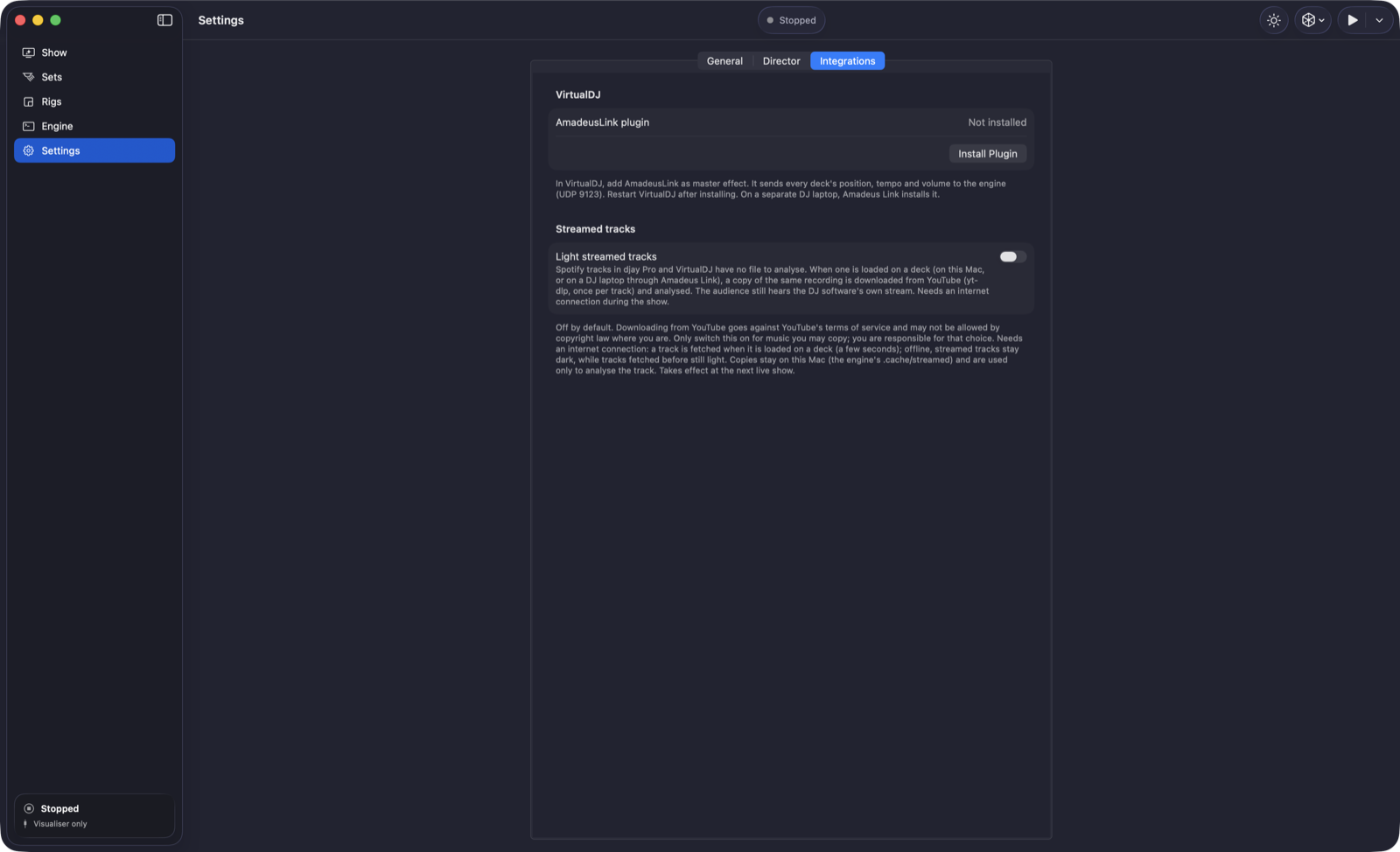
- Open Settings → Integrations → VirtualDJ.
- Choose Install Plugin, or Update Plugin if an older copy is installed.
- Restart VirtualDJ and enable AmadeusLink as a master effect.
- In Amadeus, select VirtualDJ from the Start menu and start the live show.
- Load a track and allow its lighting to prepare before playing.
The plugin sends deck position, tempo and volume without changing your audio. For VirtualDJ on another computer, install the plugin from Amadeus Link on that DJ laptop.
Windows: the bundled AmadeusLink plugin is installed into VirtualDJ’s own plugin folder. Restart VirtualDJ after installation. This integration is built but has not yet been verified on Windows hardware.
Connect Mixxx
- Select Mixxx from Amadeus’s Start menu and start the live show before opening Mixxx.
- Open Mixxx and go to Preferences → Controllers → Amadeus DMX.
- Choose the Amadeus DMX mapping and enable it.
- Load a local track from your Mixxx library and start playback.
Mixxx discovers MIDI devices when it starts. If the controller does not appear, quit Mixxx, start the Amadeus show and reopen Mixxx. On a separate DJ laptop, start Amadeus Link before Mixxx instead.
Windows MIDI setup
A loopback MIDI port named Amadeus DMX must exist before Mixxx starts. Amadeus Link first looks for an existing port, then tries an available Windows MIDI Services loopback. If it cannot create one, follow its prompt to create a port named Amadeus DMX in loopMIDI.
Start Mixxx after the port exists, load the Amadeus DMX mapping and enable it. Windows MIDI Services availability varies by system; follow the app’s detected status. The Windows integration and automatic loopback path still need verification on hardware.
Connect djay Pro
- Choose djay Pro in the Start menu.
- Allow Amadeus DMX in System Settings → Privacy & Security → Accessibility, then restart the live show.
- Keep djay Pro open and load a local track.
- For tighter beat alignment, enable Ableton Link in djay and put the deck on SYNC.
Amadeus reads djay’s labelled deck information. It does not click or type in djay. Without Link sync, the integration estimates position from elapsed-time labels, so timing is less precise immediately after seeking.
On a separate DJ laptop, grant Accessibility access to Amadeus Link on that laptop. Both computers need to be on the same network for Link beat sync.
djay Pro on Windows
The Windows integration reads djay’s labelled controls through UI Automation and does not need a macOS-style Accessibility permission. Run both apps as the same user; avoid running djay as administrator. Nothing is clicked or typed.
The exact deck labels have not yet been verified on Windows. If the app reports that it cannot recognise the deck controls, the live show cannot follow that setup reliably.
Use Spotify tracks in your DJ software
Optional streamed-track support works with Spotify tracks loaded in djay Pro or VirtualDJ, locally or through Amadeus Link. Amadeus does not play Spotify itself: the audience hears your DJ software’s stream.
- On the lighting computer, open Settings → General → Optional packs and install Streamed tracks.
- Open Settings → Integrations → Streamed tracks.
- Enable Light streamed tracks and review the app’s confirmation.
- Start a new live show. Load the next track early so its matching recording can be found and analysed.
The feature retrieves a matching recording from YouTube for analysis. It is off by default. The app explains the service restrictions and copying requirements before you enable it; use only music you are permitted to copy.
An internet connection is required for new tracks. Previously prepared copies can still light offline; an unavailable or unmatched recording cannot be prepared. Watch the deck’s preparation status before relying on it in a show.
In current versions the shared Light streamed tracks switch in Integrations applies to djay Pro as well as VirtualDJ. If djay does not prepare a streamed recording despite the switch being on, update Amadeus, confirm the pack is installed and restart the live show.
Use a separate lighting laptop
Run Amadeus DMX on the lighting computer and Amadeus Link on the DJ laptop. Link supports VirtualDJ, djay Pro and Mixxx.
- Download AmadeusLink.dmg from the release page and install it on the DJ laptop: drag it to Applications, eject the image and open the app.
- Select your DJ software in Link’s menu. For VirtualDJ, use Install or Update for the plugin, restart VirtualDJ and enable it as a master effect. For djay, grant Link Accessibility access. For Mixxx, start Link first, then enable its controller mapping in Mixxx.
- Switch Link on. It advertises the DJ laptop and displays a four-digit pairing code.
- On the lighting computer, choose Start with a DJ Laptop… from the Start menu. Select the laptop and enter its code.
- Allow local-network access on both Macs and check the deck’s connection status.
Use a cable or a dedicated network for the gig. Do not run a local Amadeus DMX live show on the DJ laptop at the same time as Link: they can compete for the DJ connection. Enable streamed-track support on the lighting computer if you use Spotify tracks.
Amadeus Link now asks for confirmation before quitting while a lighting computer is connected. Keep it open for the whole show. On Windows, a blocked connection can offer an Allow… action; see the network guide below.
Windows firewall and pairing
Both computers must be on the same local network. Use the nearby-device picker to connect by the DJ laptop’s name, then enter its four-digit code.
An installation for everyone adds the local-network firewall rules. With a per-user installation, Windows may ask for network permission on first use. Allow the network profile used by your lighting connection. If you cancelled an earlier prompt, Windows can retain a block rule.
- Look for a firewall warning in Amadeus Link or in Amadeus DMX while connecting to a DJ laptop.
- Choose Allow… and approve the Windows administrator prompt if you want the app to repair its local-network rules.
- Try pairing again. If the laptop is unreachable, read the connection error and check the network, Link’s running state and the current code.
Keep the firewall enabled; the app’s repair targets its own local-network access. The public-network profile may need permission if Windows classifies the gig network that way.
Preview the stage and choose a show mode
 ↗ Enlarge screenshot
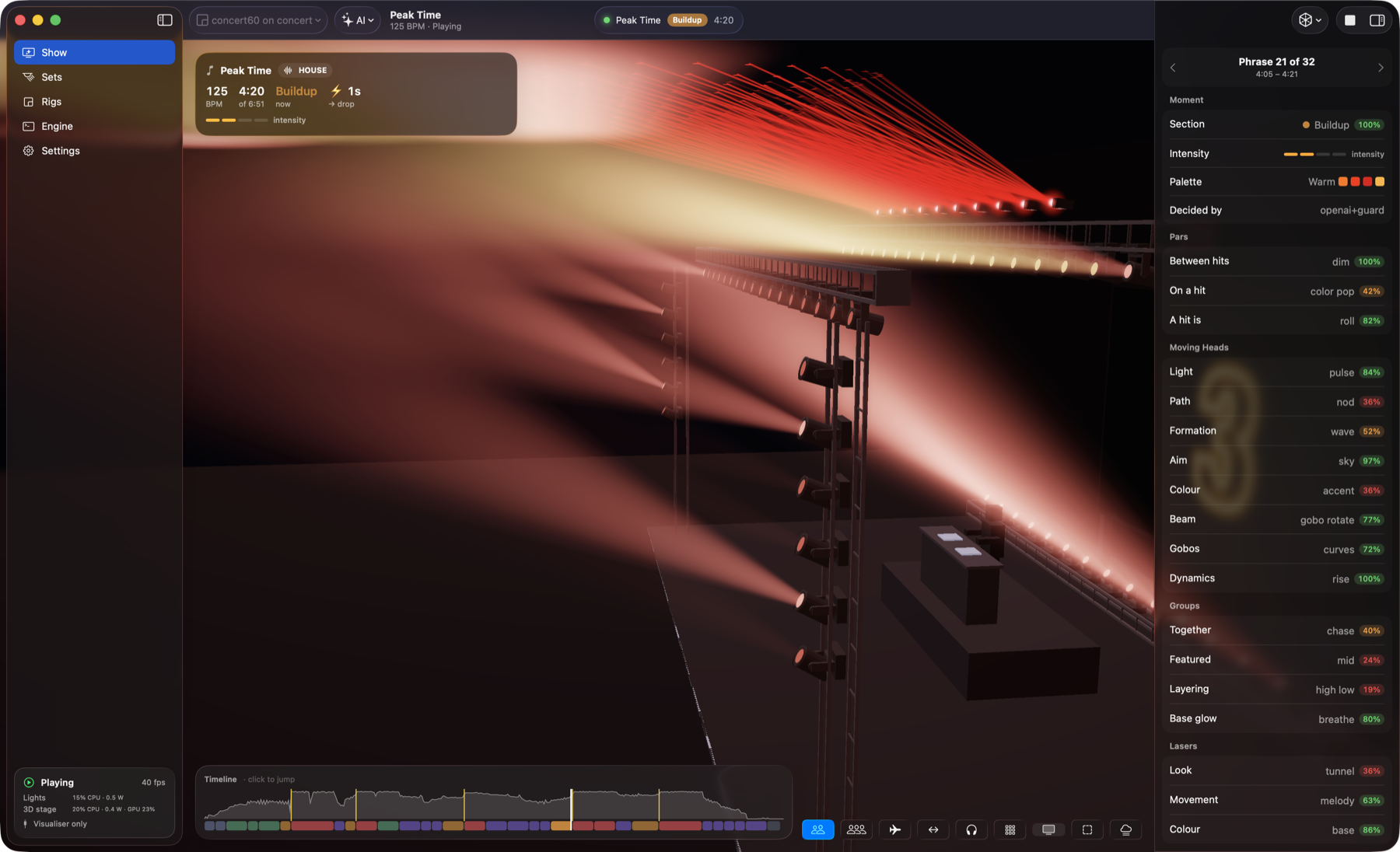
Use the Show menu or Settings → General → Mode to choose:
- Visualise Only: preview the stage without sending DMX.
- Perform + Visualise: send DMX and display the 3D stage together.
- Perform Only: send DMX with the 3D stage off, leaving more of your Mac’s resources for the show.
The stage controls offer camera presets, a zone overlay and an LED Wall scene picker. Leave the wall on the director’s automatic choice, or preview a particular scene. Haze, Exposure and Slow orbit change the visual preview; the Haze slider does not set a real fog machine’s output.
In Perform Only, the performance board shows the current section and what comes next. Use Show the Stage to bring the 3D preview back. Check the sidebar’s CPU/GPU indicators and performance advice if your Mac is busy.
Walk or fly around the stage on Mac
Use the fly control or press F. Move with WASD or the arrow keys, use Q/E to move down/up, and drag to look around. Hold Shift to move faster; press Escape to land. Outside fly mode, WASD still walks through the room and +/− zooms.
Windows has a native 3D stage and rig editor too. The guide’s screenshots show the Mac controls; use the camera controls shown in your Windows app.
Map an unusual fixture’s channels
If a fixture is marked Plays nothing, its imported mode may not expose controls the show can use. The DMX mapper lets you assign supported roles without editing files.
- On the Sets page, choose Channels… (labelled Map Channels in older versions), or use Map DMX Channels… from the fixture menu.
- Check each channel against the fixture manual and its listed value ranges.
- Assign roles such as dimmer, colour, pan, tilt or a pixel cell. Use hold at value for a fixed channel setting, such as keeping a shutter open or an automatic program off. Keep an existing mapping where appropriate.
- Use Try on the Lights to test one fixture. The rest of the set goes dark and a running show is paused. Keep the brightness limiter low while testing.
- Save the mapping. It applies to fixtures of that model using the mapped mode.
This mapper does not map laser or smoke-machine channels. An imported laser profile without an approved mapping remains inactive.
Control fog and haze
↗ Enlarge screenshotGive your atmosphere the right scale.
Set Stage width, Ceiling and Room depth in the venue inspector. Realistic dimensions help Amadeus estimate how haze fills the space.
The screenshot shows where these controls live. Real fog output is controlled by the show; the preview’s Haze slider only changes what you see on screen.
Add a supported fogger or hazer to your set, select the correct mode and patch it like your other fixtures. Set realistic venue dimensions in the Rig inspector.
The director chooses atmosphere per musical phrase. Compatible fog machines use timed bursts and rest periods; hazers can maintain a steadier output. The show accounts for the estimated room volume and the haze left by the previous track.
Use the Smoke control in the Show Arc card to reduce the planned output. Return it to Auto for automatic control. The preview’s Haze slider affects the on-screen appearance only.
Get the venue’s approval before using fog or haze, particularly around smoke detectors. Check the machine’s capacity and reheating behaviour before the event.
Set brightness and beam boundaries
Brightness limiter
Use the toolbar’s Brightness Limiter to cap light output during setup and fixture tests. The banner shows when it is active. Select 100% (Off) or Back to 100% when you intentionally want the full show level.
Zones
In the rig editor, use Zone to add and position boundaries:
- Keep out: prevents moving-head beams from turning into a defined area.
- Keep in: confines their target area.
- Laser safety: restricts modelled laser patterns. A laser-equipped set needs a laser safety zone before real laser output is enabled.
Set the laser’s measured aim in the inspector and test alignment on the actual rig. Software zones depend on correct fixture information and placement; they supplement physical masking, scan safety and an emergency stop.
Current beta output limits
Risk-group 2/3 fixtures and some unclassified high-output narrow beams are kept dark on physical DMX output in the current beta, even though they appear in the preview. Do not assume a bright preview means that fixture is permitted to output.
The brightness limiter starts at 100% whenever the app opens, so set a lower value explicitly before testing. Software safeguards and visualisation do not replace checking the real fixture, its aim and the venue.
Add optional analysis features
 ↗ Enlarge screenshot
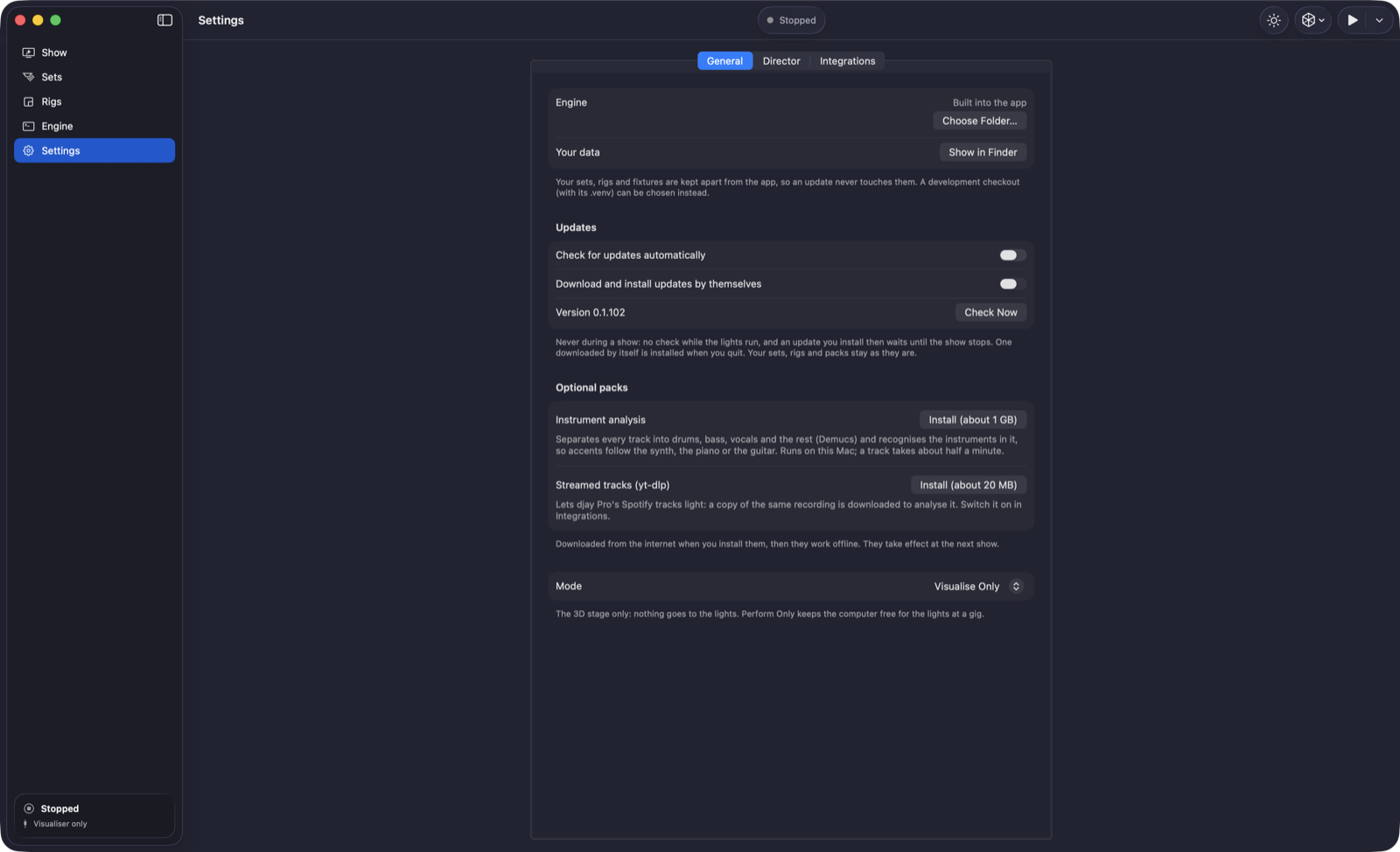
Open Settings → General → Optional packs. Select Install beside a pack, review its notice and wait for installation to finish. Packs take effect at the next show.
Instrument analysis
This adds instrument separation and recognition: drums, bass, vocals and melodic instruments can guide different lighting accents. It helps the director follow a piano intro, guitar part or drum kit, and distinguish song sections. Installation is about 1 GB on Mac and on CPU-only Windows setups.
The recognition models are licensed for non-commercial use. Review the pack’s licence before using it at a paid event. The core show works without this pack.
Windows and NVIDIA graphics
When a compatible NVIDIA card and driver are detected, the installer offers a GPU-enabled instrument pack. This can take 4–5 GB of disk space, with a roughly 1.9–2.5 GB download. Newer cards need an appropriate current driver. The pack section tells you which version it will install.
AMD and Intel graphics use the CPU for this feature. CPU preparation can take one to a few minutes per track. If the NVIDIA card cannot process a track, it falls back to the CPU. GPU performance and compatibility have not yet been verified on real Windows hardware; prepare tracks before the event.
Streamed tracks
This approximately 20 MB pack enables preparation of supported streamed recordings. Also turn on Light streamed tracks in Settings → Integrations. Previously installed instrument analysis can work offline; a new streamed recording still requires internet access.
For a failed pack installation, check the displayed error, internet connection and free storage before retrying.
Updates and your saved setups
Open Settings → General → Updates. The app displays its installed version and build, checks the configured release feed, and tells you whether it is up to date or which newer version is available.
- If a newer version is shown, choose Update to [version].
- Watch the download progress inline. You can cancel while downloading.
- The app installs the update and starts again when it is safe to do so. A running show delays installation; Amadeus Link waits until no lighting computer is connected.
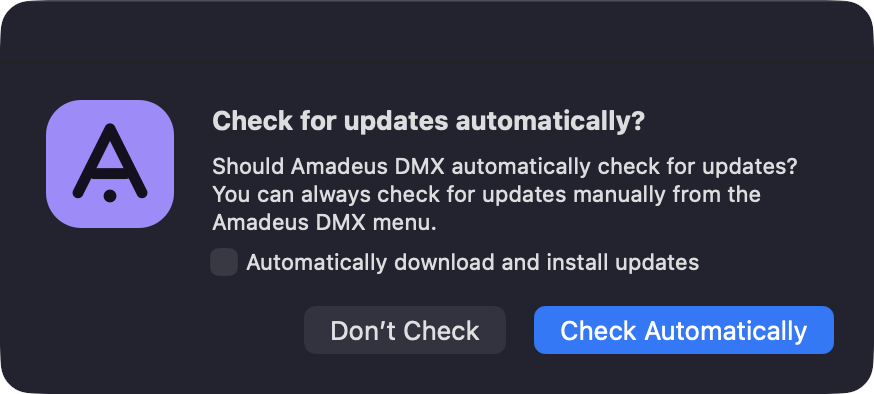
Use the refresh control to check again, or Check Now for the updater’s usual window. Enable automatic checks and automatic download/install if you want ongoing updates. A failed check is shown as an error, not an “up to date” result.
 ↗ Enlarge screenshot
Amadeus Link shows its own version and update status in its window. Updates do not replace your saved sets, rigs, settings or optional packs.
Back up your setups
On Mac, use Settings → General → Your data → Show in Finder. Your data is kept under Library/Application Support/Amadeus DMX in your home folder. On Windows it is under %LOCALAPPDATA%\Amadeus DMX. Back up this data before changing computers.
The Help menu opens documentation, the setup guide and release notes. The guide on this site is organised around using the installed apps.
Troubleshooting before the gig
The app does not open
Check the requirements for your operating system. On Mac, launch the copy in Applications after ejecting the DMG; a new release can still be waiting for its Apple notarisation ticket. On Windows, read the installer’s SmartScreen message and any organisation policy that blocks unsigned apps.
There are no lights
Check that the mode is not Visualise Only. Confirm the chosen set is placed on the rig, your universe routing is saved, and the physical fixtures use matching modes and addresses. Restart the show after changing output routing. Check the brightness limiter and Show Arc Intensity and Light Groups controls.
A fixture responds incorrectly
Test one fixture from Sets. Confirm its mode and address before changing the profile. Use Map Channels for unsupported channel assignments. Check pan/tilt inversion and mounting orientation if movement is reversed.
The show is waiting for the DJ
VirtualDJ: enable AmadeusLink as a master effect after installing it and restarting. Mixxx: open it after starting Amadeus or Link, and enable the controller. djay: on Mac, check Accessibility permission; on Windows, run both apps as the same user. Keep the djay window available.
A streamed track stays dark
Check the Streamed tracks pack, the Light streamed tracks setting, internet access and the deck’s preparation status. Load the track early. Some recordings cannot be matched; use a prepared local track instead.
The lighting laptop cannot find the DJ
Put both computers on the same network, allow local-network access, switch Amadeus Link on and recheck its pairing code. Avoid running a second local live show on the DJ laptop.
The stage makes the Mac busy
Choose Perform Only for the gig. Use mains power where practical and check the sidebar’s CPU/GPU indicators. The Engine page provides the show log when you need more detail about a failure.
Windows cannot pair or receive deck data
Read the firewall warning and use Allow… if offered. Check that the app is allowed on the current network profile. Keep Amadeus Link running and use the device name and code shown there.
Instrument analysis is slow on Windows
CPU-only analysis can take minutes per track. Install the appropriate pack from Settings and prepare your tracks before the show. More memory and a compatible NVIDIA setup may help, but hardware acceleration still needs verification on your machine.
Where can I see a failure?
Use the Engine page to inspect the show engine and setup-service logs, filter entries, follow new output or copy the log. Windows also keeps crash logs under %LOCALAPPDATA%\Amadeus DMX\logs or the corresponding Amadeus Link folder.
No matching guides. Try “fixtures”, “djay”, “Show Arc” or “installation”.